
 CV Maker
  Cover Letter Generator
  Invoices
  Certificates
  Letters
  Insurance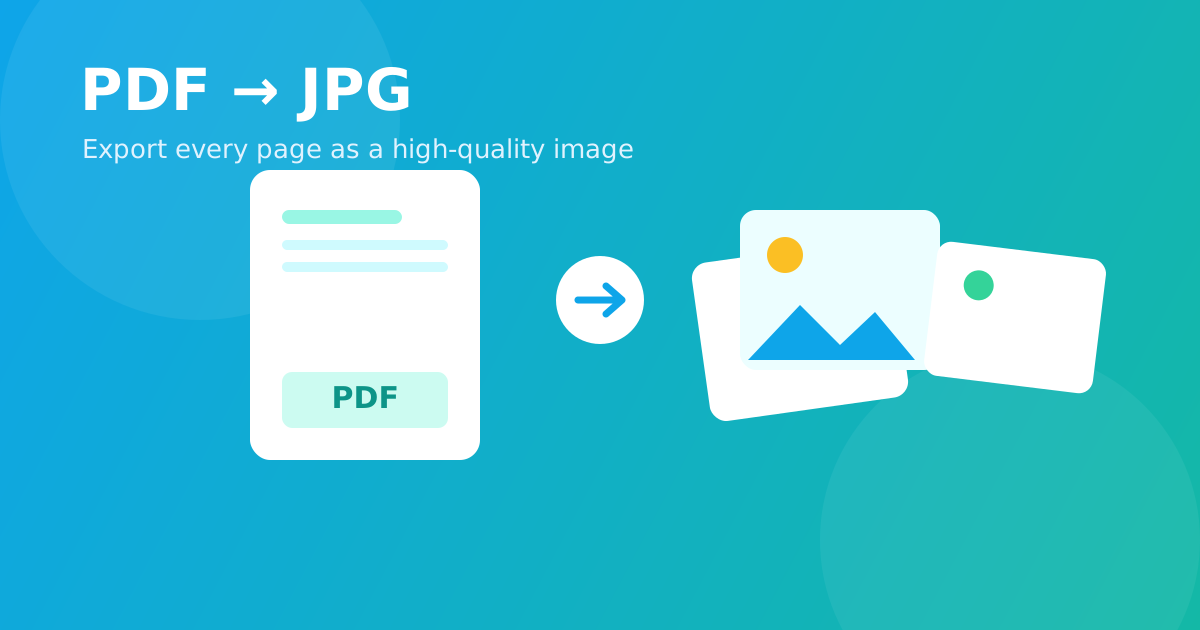
How to Convert PDF to JPG Images (High Quality, Free)
Sometimes you don't need the whole PDF — you need it as images. Maybe you want to post a page on social media, drop a figure into a presentation, or send a preview that opens instantly without a PDF reader. Converting a PDF to JPG takes seconds and keeps every page crisp.
Why turn a PDF into images?
- Share anywhere — images preview instantly in chats, posts, and emails.
- Drop pages into slides or documents without copy-paste headaches.
- No reader needed — a JPG opens on literally any device.
- Grab one page instead of sending a whole file.
Steps: convert PDF to JPG
1. Open the PDF to JPG tool
Head to Confileo's PDF to JPG tool — free, no signup, and it runs right in your browser.
2. Upload your PDF
Drag and drop the file or tap to select it. Files up to 100MB are supported.
3. Convert
The tool renders each page as a high-quality JPG image automatically.
4. Download your images
Save a single page or download every page at once. Your file is deleted automatically after processing.
Tips for the sharpest images
- Start from the original PDF, not a screenshot, for maximum clarity.
- For text-heavy pages you want to edit, use PDF to Word instead.
- Need the reverse? Combine images back into a document with Images to PDF.
Frequently asked questions
Will the images be blurry? No — each page is exported at high resolution so text and graphics stay sharp.
Can I convert just one page? Yes. You can download an individual page or all pages together.
Does it work on mobile? Yes — everything runs in your phone's browser, no app required.
Ready to go? Convert your PDF to JPG now — free, fast, and secure.